VJS125*,VJS145* “Intel® Bluetooth Driver Ver.24.20.0.4” Update Program
Applicable Models
VJS125*
VJS145*
Applicable OS
Windows 11 Pro 64-bit
New Features
- Added support for communication over the 6 GHz frequency band (Wi‑Fi 6E).
*2: If the wireless LAN driver version is Ver. 22.180.0.4 or earlier, applying this update will enable communication over the 6 GHz frequency band.
*3: Windows 10 does not support communication over the 6 GHz frequency band.
Issues Resolved
- Improved wireless LAN stability.
- This version also includes fixes for the following issues addressed in previous versions:
- Addressed the following vulnerabilities:
INTEL-SA-01398
INTEL-SA-01270
INTEL-SA-01224
INTEL-SA-01167
INTEL-SA-01108
INTEL-SA-01039
INTEL-SA-00947
INTEL-SA-00621
INTEL-SA-00766(CVE-2022-27635,CVE-2022-40964,CVE-2022-46329,CVE-2022-36351)
INTEL-SA-00582
INTEL-SA-00509
INTEL-SA-00402
Download Procedure
At this stage, only download the file—do not run it yet.
- Create a folder to store the downloaded file.
*In this example, the folder is named “Update” and created on the C drive.
*Use only alphanumeric characters for the folder name. Using double-byte characters, spaces, or special characters may prevent the program from running correctly.
- Review the “Software License Agreement”.
- After reviewing, click the [Agree and Download] and download the update program to the folder created in step 1.
- After downloading the program, refer to the next section, “How to Apply Program and Pre-application Checks”,to install the program.
- After applying the update program, delete the “Update” folder created in step 1.
How to Apply Program and Pre-Application Checks
■Pre-Application Checks
- Do not apply this program at the same time as other update programs, such as BIOS updates.
Doing so may cause the update to fail. - After applying this program, be sure to restart your PC.
- Apply this program only if the “Intel® Wireless Bluetooth® Driver” version is “Ver. 24.20.0.4” or earlier.
- When applying this program, also apply the following update programs as applicable:
Related FAQ:“Intel® Bluetooth Driver Ver.24.20.0.3” Update Program
- This program is also distributed via Windows Update.
- Although this driver can also be updated via Windows Update, an update to certification information is required for communication over the 6 GHz frequency band (Wi‑Fi 6E). Therefore, please also apply this program.
■How to Apply Program
- Close all applications currently running on Windows.
- Open [PC (Computer)] – [Local Disk (C:)] – [Update] folder (the folder where you downloaded the file), and double-click the [SP000873.exe] file.
- The following dialog box will appear, so review the message and click [OK].
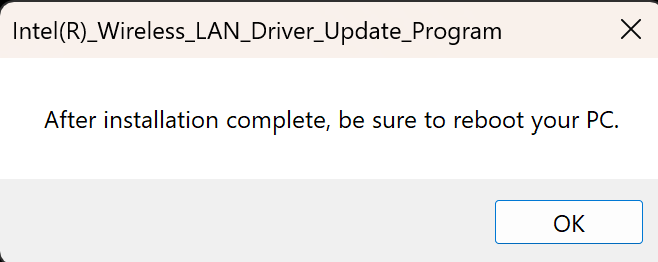
- When the User Account Control (UAC) screen appears, select [Yes] to begin applying the program.
- When the following dialog box appears, the update has been completed successfully. Click [OK], and and restart PC manually.
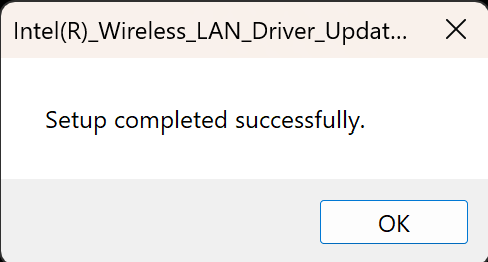
Notes
The following screen will be displayed during restart, and the certification information will be updated.
*4: If the certification information has already been updated, this screen will not be displayed.
After completing these steps, the process is finished.
About Silent Installation
This update program supports silent installation from the command prompt (updating without displaying dialog boxes).
To perform a silent installation, follow the steps below.
- Place the update program in any desired location.
*In this example, it is placed in C:\Update. - Launch the Command Prompt with administrator privileges.
- Run the following command:
C:\Update\SP000873.exe /vpm_noninteractive
*Alternatively, you can set the current directory using the cd command and then run “SP000873.exe /vpm_noninteractive”.
The silent installation will start.
No completion message will be displayed. If you need to confirm completion timing or results, create a batch file and check the return code.
Return Codes:
Success: 0
・Restart at your convenience.
Failure: 2
How to Check if the Program Has Been Successfully Applied
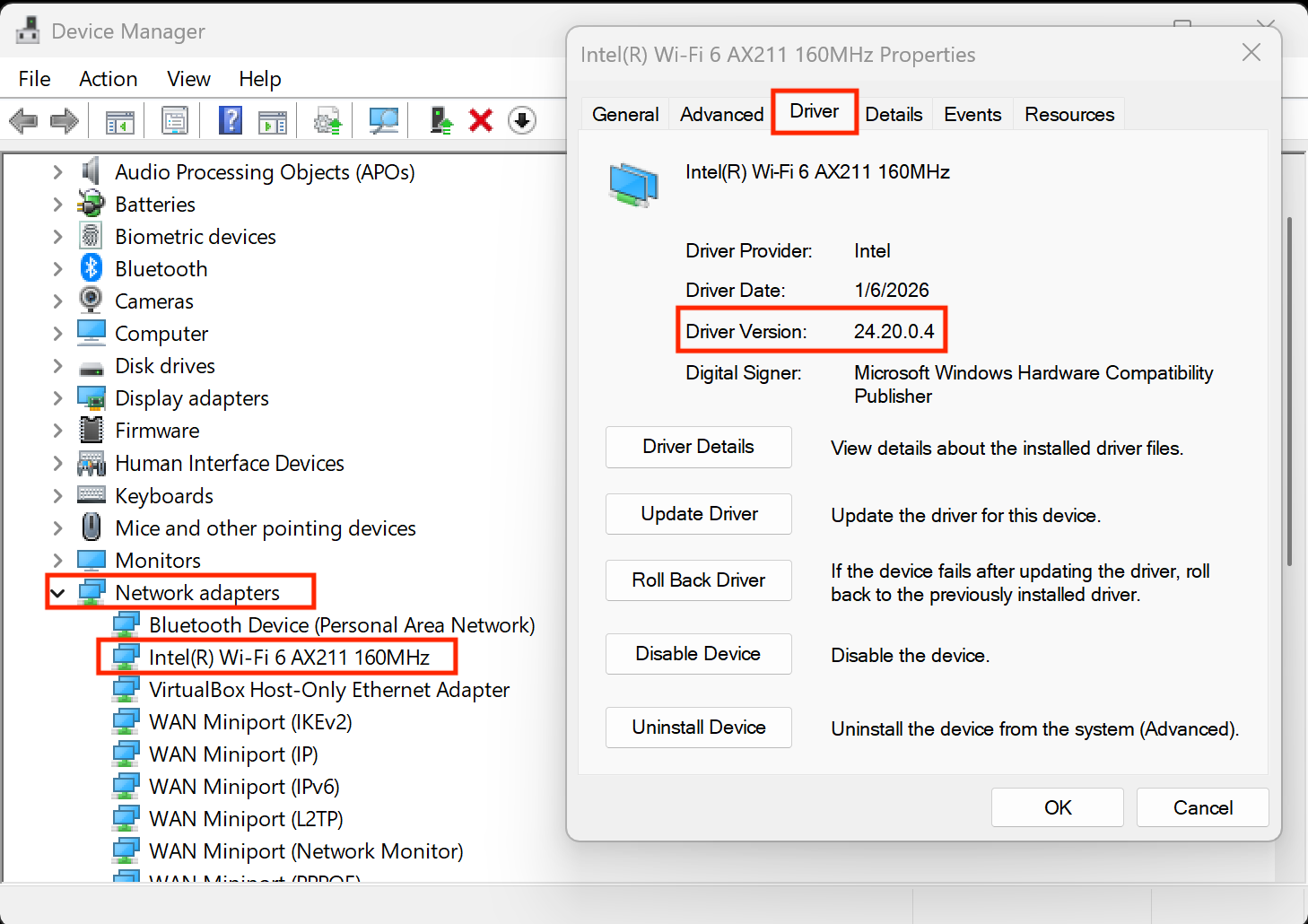
- Open [Device Manager].
- Double-click [Network adapters].
- Double-click “Intel® Wi-Fi 6E AX211 160MHz” to display properties.
- Click the [Driver] tab and check the displayed version number. If the version is “24.20.0.4”, the update has been applied successfully.