“Intel® ME Firmware Ver.15.0.52.2700” Update Program
Applicable Models
VJS124*, VJS144*
VJZ141*, VJZ142*
Applicable OS
Windows 11 Pro 64-bit
Windows 10 Pro 64-bit
Applicable ME Firmware Version
If the ME Firmware version field shows a value other than “15.0.52.2700”, please proceed as necessary.
【How to Check the ME Firmware Version】
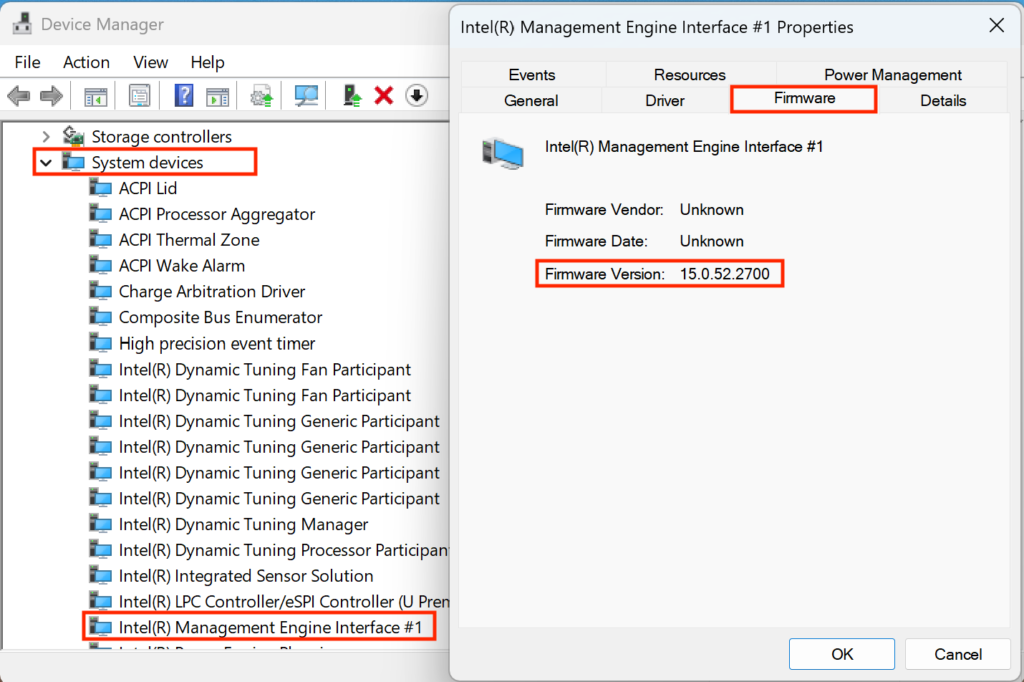
- Open [Device Manager].
- Double-click [System devices].
- Double-click [Intel® Management Engine Interface #*] (* indicates any number).
- The properties window for “Intel® Management Engine Interface #*” will appear. Click the [Firmware] tab.
- The current ME Firmware version is displayed in the “Firmware Version” field.
Issues Resolved
- Addressed the following vulnerability:
INTEL-SA-01280 (CVE-2025-20067)
* For Intel® ME Firmware security vulnerabilities, please also refer to the related FAQ link below: - This version also includes fixes for the following issues addressed in previous versions:
- Improved operation stability.
- Addressed the following vulnerabilities:
INTEL-SA-01209 (CVE-2025-2884)
INTEL-SA-00783 (CVE-2022-38102)
INTEL-SA-00613
Download Procedure
- Create a folder to store the downloaded file.
*In this example, the folder is named “Update” and created on the C drive.
*Use only alphanumeric characters for the folder name. Using double-byte characters, spaces, or special characters may prevent the program from running correctly.
- Review the “Software License Agreement”.
- After reviewing, click the [Agree and Download] and download the update program to the folder created in step 1.
- After downloading the program, refer to the next section, “How to Apply Program and Pre-application Checks”, to install the program.
- After applying the update program, delete the “Update” folder created in step 1.
How to Apply Program and Pre-Application Checks
■Pre-Application Checks
- When applying this program, be sure to also apply the following program:
▼Related Q&A:
“Intel® ME Driver Ver.2306.4.3.0” Update Program
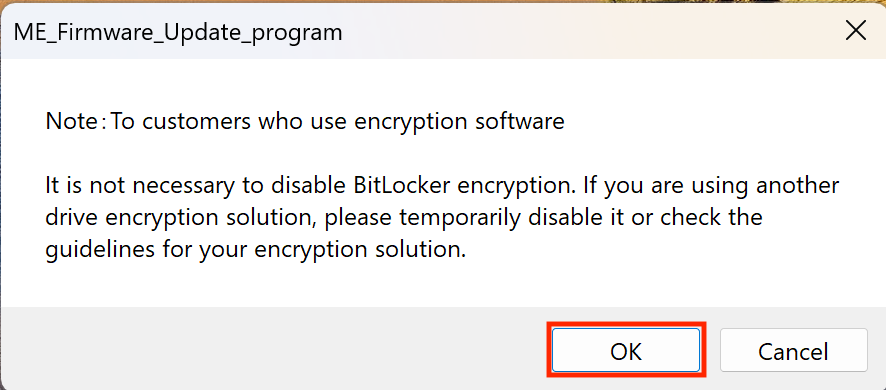
- For BitLocker Drive Encryption and device encryption (standard OS encryption features), it is not necessary to decrypt. However, if you are using other drive encryption solutions, temporarily disable them or refer to their guidelines.
- Be sure to connect the AC adapter and power cable to the unit.
- Disconnect all peripheral devices.
- Sign in to Windows using a user account with “Computer Administrator” or “Administrator” privileges.
- The username must consist of alphanumeric characters only. If double-byte characters or spaces are used, create a new account with an alphanumeric username.
- Close all running applications.
- Temporarily stop any resident software such as antivirus programs.
- Configure the system so it does not enter standby, sleep, or hibernation during the update.
- Do not restart or power off the system during the update.
- If a “User Account Control” or “Open File – Security Warning” dialog box appears during the process, review the contents and follow the on-screen instructions to continue.
- Confirm that your model is supported. Applying this program to an unsupported model may cause the update to fail or result in malfunctions.
■How to Apply Program
- Close all applications currently running on Windows.
- Open [PC (Computer)] – [Local Disk (C:)] – [Update] folder (the folder where you downloaded the file) and double-click the [SP000783.exe] file.
- The following dialog box will appear, so review the message and click [OK].
- When the User Account Control (UAC) screen appears, select [Yes] to begin applying the program.
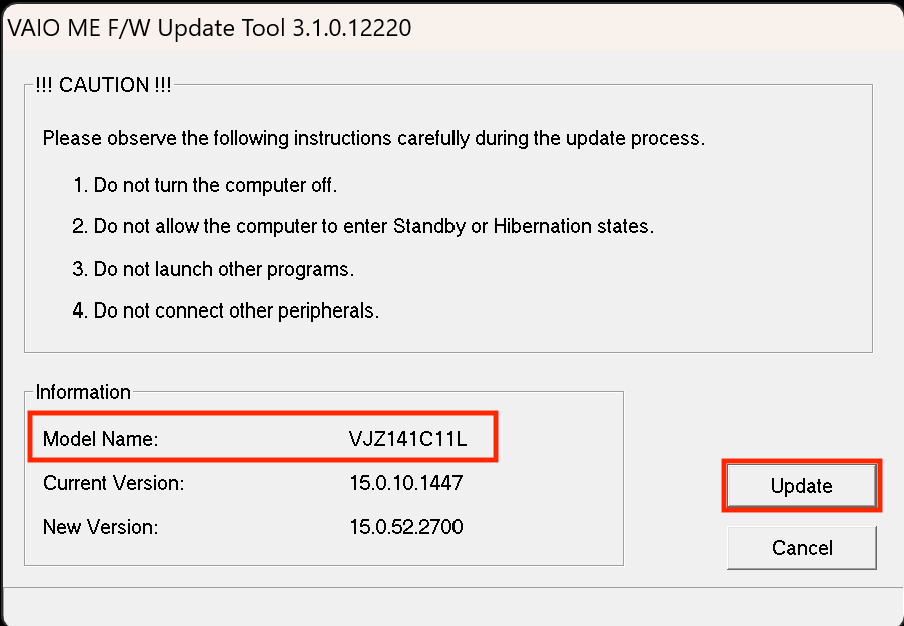
- When the [VAIO ME F/W Update Tool 3.0.1.12220] dialog box appears, confirm that the model name is included in the list of supported models for this update program, and then click [Update].
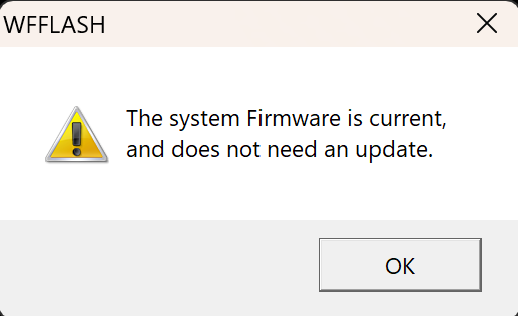
* If the following dialog box appears, this program has already been applied.
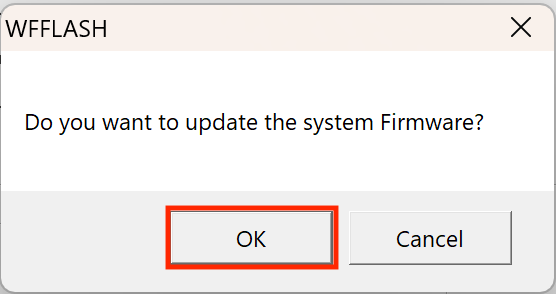
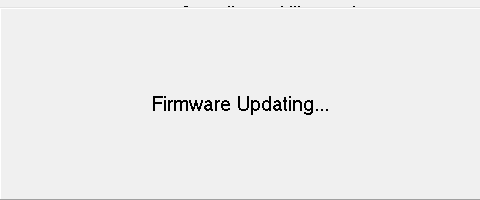
- When the following dialog box appears, select [OK]. The update will begin.
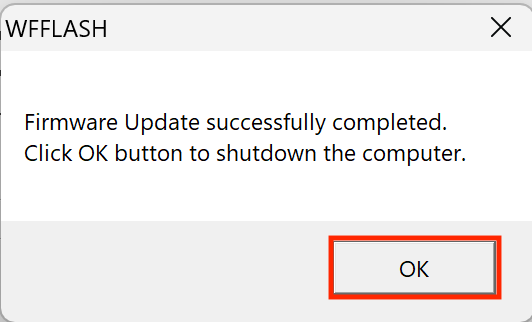
- When the following dialog box appears, the update has been completed successfully. Click [OK] to automatically shut down the system.
After completing these steps, the process is finished.
Turn on the VAIO again and follow the steps in “How to Check if the Program Has Been Successfully Applied”.
How to Check if the Program Has Been Successfully Applied
- Open [Device Manager].
- Double-click [System devices].
- Double-click [Intel® Management Engine Interface #*] (* indicates any number).
- The properties window for “Intel® Management Engine Interface #*” will appear. Click the [Firmware] tab.
- If the value in the “Firmware Version” field is “15.0.52.2700,” the update has been applied successfully.