“Intel® Wireless LAN Driver Ver.23.160.0.4” Update Program
“Intel® Wireless LAN Driver Ver.23.160.0.4” Update Program
Applicable models
VJS124*
VJS144*
VJZ141*, VJZ142*
Applicable OS
Windows 11 Pro 64-bit
Windows 10 Pro 64-bit
Issues to be resolved
- The following vulnerability has been addressed:
INTEL-SA-01398
- This version also includes fixes for the following issues that were fixed in previous version.
- Improved operation stability.
- The following vulnerabilities have been addressed:
INTEL-SA-01270
INTEL-SA-01224
INTEL-SA-01167
INTEL-SA-01108
INTEL-SA-01039
INTEL-SA-00947
INTEL-SA-00621
INTEL-SA-00766(CVE-2022-27635,CVE-2022-40964,CVE-2022-46329,CVE-2022-36351)
INTEL-SA-00582
INTEL-SA-00509
INTEL-SA-00402
Download procedures
- Prepare a folder to store the downloaded file.
*In this explanation, we will use a folder named “Update” created on C Drive.
*Please use only single-byte alphanumeric characters for the folder’s name.
If you use double-byte characters, single-byte spaces, special characters, etc., the program cannot be executed correctly.
- Review the “Software License Agreement”.
- Click the [Agree and Download] button and download the update program to the folder created in Step 1.
- After downloading the program, apply the program by referring to the “How to apply the program and prior confirmation” below.
- For now, just download and do not run the file. After applying the update program, delete the “Update” folder created in Step 1.
How to apply the program and prior confirmation
■Prior confirmation
- Always restart your PC after applying this program.
- This update program should be applied only when the version of “Intel® Wireless LAN Driver” is “Ver. 23.160.0.4” or below.
- This program is also distributed via Windows Update.
■How to apply the program
- Close all applications running on Windows.
- Open the [PC (Computer)] – [Local Disk (C:)] – [Update] folder (the folder where you downloaded the file) and double-click the [SP000816.exe] file.
- The following dialog appears, so review the content and click [OK].

- When the User Account Control screen appears, click [Yes]. It will begin applying the program.
- If the following dialog appears, the update has been successfully completed. Click [OK]. The PC will restart.

This completes all procedures.
How to confirm that the program has been applied
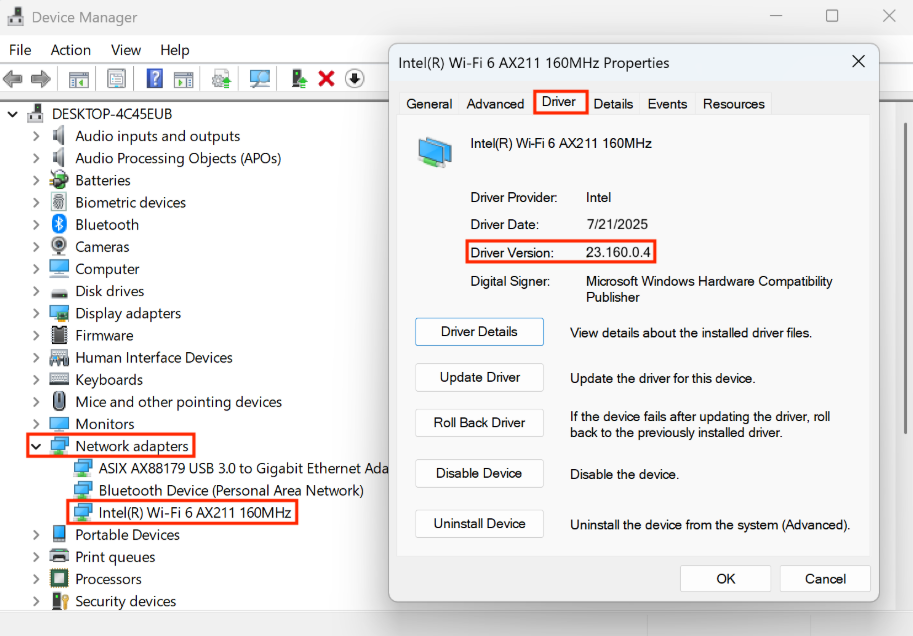
- Open [Device Manager].
- Double click [Network adapters].
- Double click [Intel® Wi-Fi *****] (***** can be any number). Properties will appear.
- Click the [Driver] tab. If the version displayed is “23.160.0.4”, the update has been successful