“TPM Firmware Ver.15.25” Update Program
Applicable models
VJS125*
VJS145*
*1: Applies only to models equipped with a TPM chip
Applicable OS
Windows 11 Pro 64-bit
Applicable Firmware Version
Applies if the TPM firmware “Manufacturer” is “Infineon (IFX)” and the version displayed is earlier than “15.25”
[How to Check TPM Firmware Information]
- Click the Start button.
- Enter “TPM” in the search box.
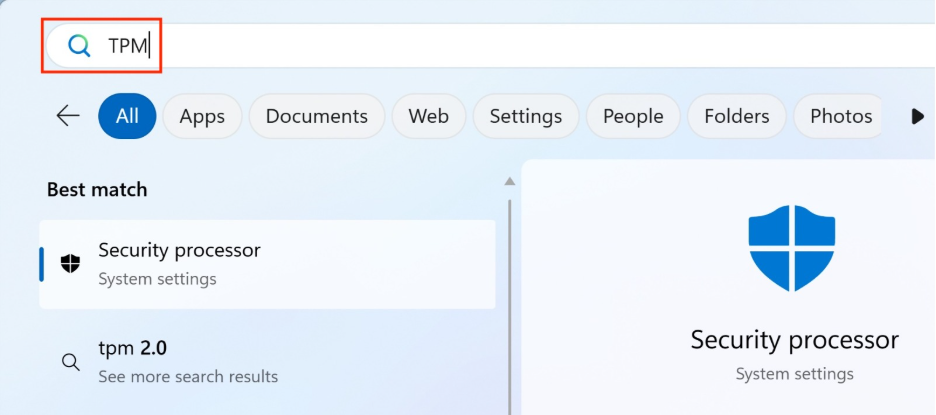
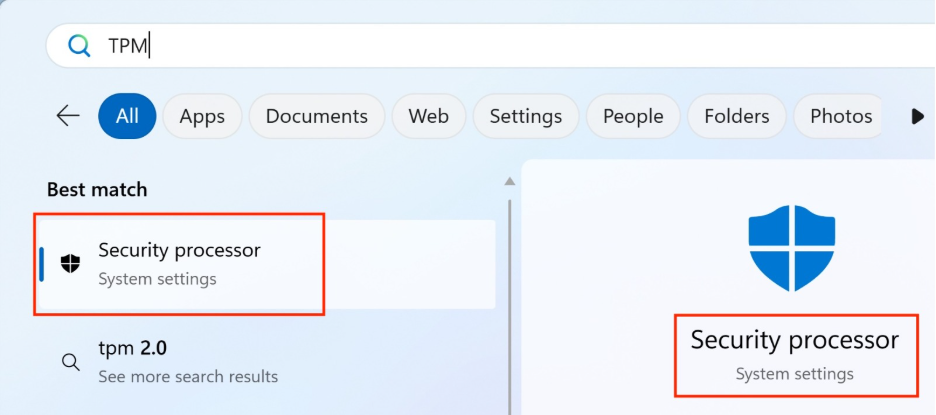
- Select “Security processor” from the search results.
- The “Security processor details” screen is displayed. Check the values for “Manufacturer” and “Manufacturer version”.
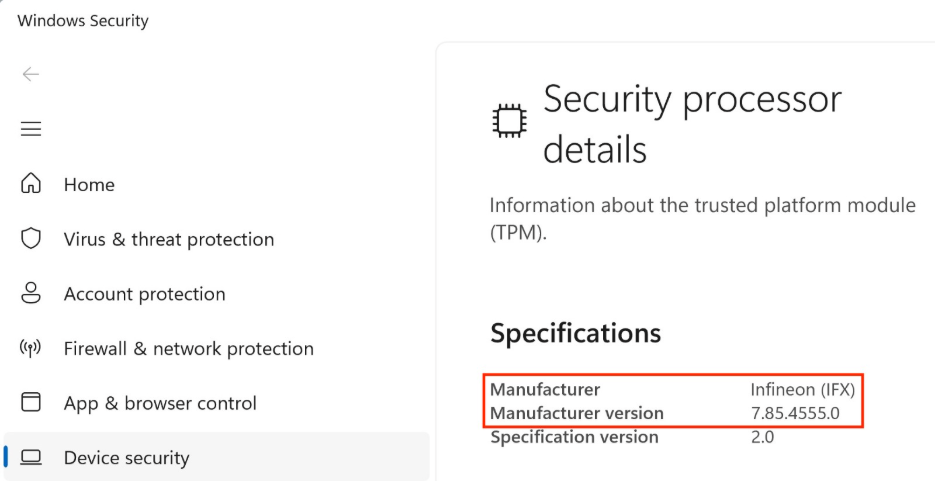
*If “Intel (INTC)” is displayed for “Manufacturer”, the model is equipped with Intel® PTT (firmware TPM) rather than a physical TPM chip. In this case, the model is not applicable to this update program.
Issues Resolved
- Addressed the following TPM security vulnerability:
TCGVRT0010(CVE-2026-6726)
Addressed an information disclosure vulnerability in the TCG TPM 2.0 Reference Implementation.
*Includes cumulative updates from previous releases.
- This version also includes fixes for the following issues addressed in previous versions:
- Addressed the following TPM security vulnerability:
TCGVRT0009(CVE-2025-2884)
- Improved the asymmetric cryptographic library.
*Mitigation for physical side-channel attacks during ECDSA signing
- Improved an issue that prevented updates from being applied in certain environments.
Download Procedure
At this stage, only download the file - do not run it yet.
- Create a folder to store the downloaded file.
*In this example, the folder is named “Update” and created on the C drive.
*Use only alphanumeric characters for the folder name. Using double-byte characters, spaces, or special characters may prevent the program from running correctly.
- Review the “Software License Agreement”.
- After reviewing, click the [Agree and Download] and download the update program to the folder created in step 1.
- After downloading the program, refer to the next section, “How to Apply Program and Pre-Application Checks”, to install the program.
- After applying the update program, delete the “Update” folder created in step 1.
How to Apply Program and Pre-Application Checks
■Pre-Application Checks
- Models equipped with Intel® PTT are not supported by this program. If you run this program on such a model, an error message will be displayed.
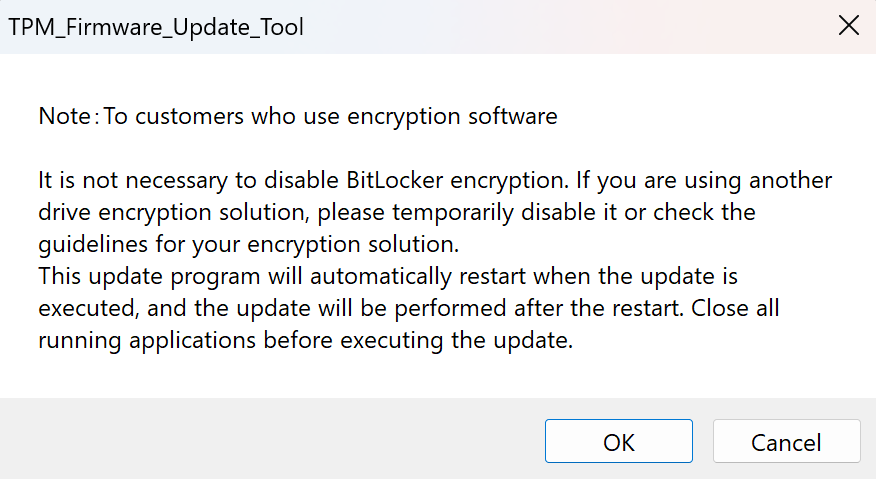
- This program automatically restarts the system immediately after it is executed, and the update is applied after the restart. Close all applications before applying the update. Be sure to save any open data before proceeding.
- For BitLocker Drive Encryption and device encryption (standard OS encryption features), it is not necessary to decrypt. However, if you are using other drive encryption solutions, temporarily disable them or refer to their guidelines.
- Be sure to connect the AC adapter and power cable to the unit.
- Disconnect all peripheral devices.
- Sign in to Windows using a user account with “Computer Administrator” or “Administrator” privileges.
- The username must consist of alphanumeric characters only. If double-byte characters or spaces are used, create a new account with an alphanumeric username.
- Close all running applications.
- Temporarily stop any resident software such as antivirus programs.
- Configure the system, so it does not enter standby, sleep, or hibernation during the update.
- Do not restart or power off the system during the update.
- If a “User Account Control” or “Open File – Security Warning” dialog box appears during the process, review the contents and follow the on-screen instructions to continue.
- Confirm that your model is supported. Applying this program to an unsupported model may cause the update to fail or result in malfunctions.
■How to Apply Program
- Close all applications currently running on Windows.
- Open [PC (Computer)] – [Local Disk (C:)] – [Update] folder (the folder where you downloaded the file) and double-click the [SP000909.exe] file.
- The following dialog box will appear, so review the message and click [OK].
- When the User Account Control (UAC) screen appears, select [Yes] to begin applying the program.
- The PC will restart automatically.
- After the system restarts, the update will begin. Do not perform any operations until the update has been completed. Once the update is complete, the system will shut down automatically.

After completing these steps, the process is finished.
Turn on the VAIO again and follow the steps in “How to Check if the Program Has Been Successfully Applied”.
How to Check if the Program Has Been Successfully Applied
- Click the Start button.
- Enter “TPM” in the search box.
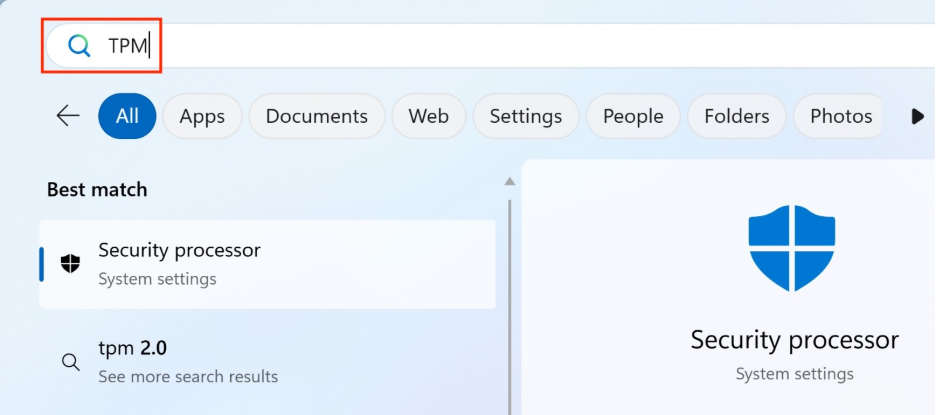
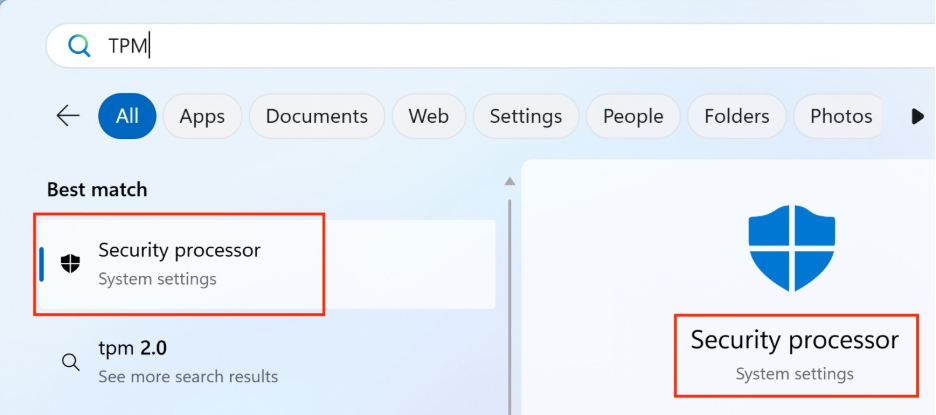
- Select “Security processor” from the search results.
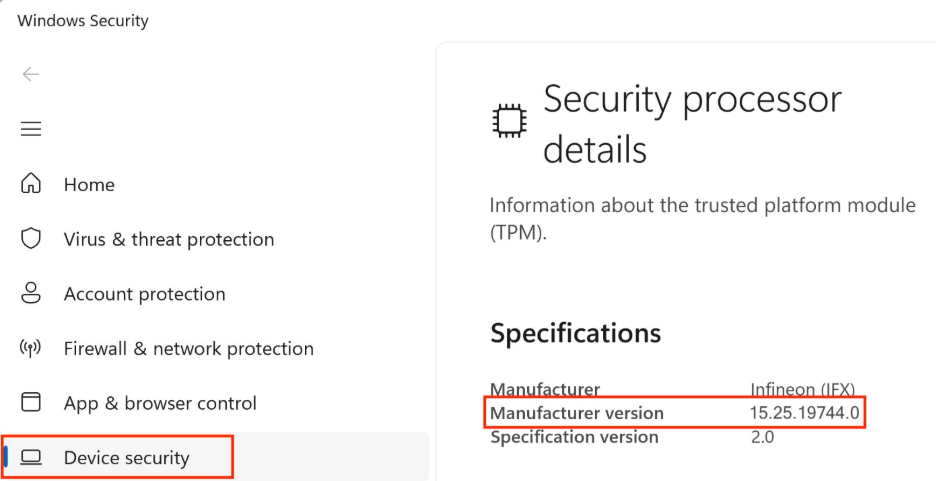
- The “Security processor details” screen is displayed. Check the values for “Manufacturer” and “Manufacturer version”.
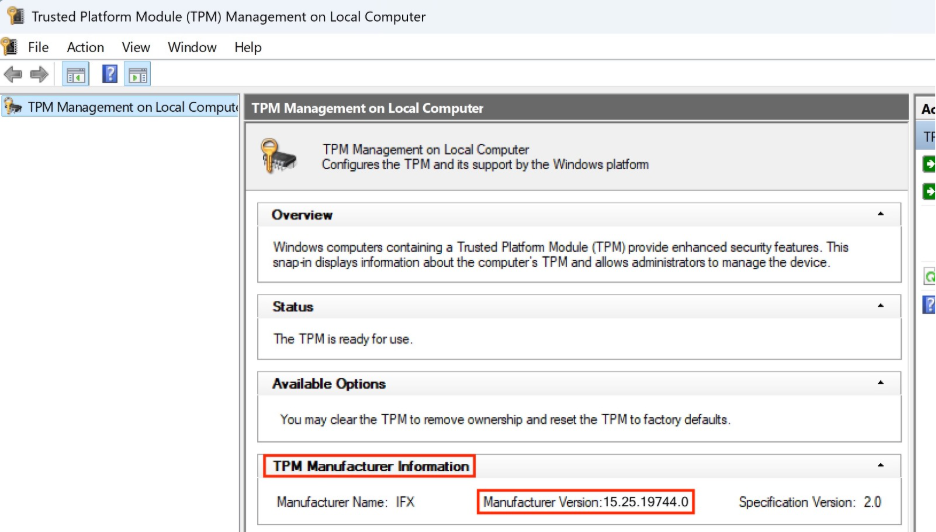
- If the value displayed for “Manufacturer version” begins with “15.25.”, the update has been applied successfully.
If the update status cannot be verified using the procedure above, use the following procedure.
- Press the [Windows] key + [R] key.
- When the “Run” dialog box is displayed, enter “tpm.msc” and press the [Enter] key.
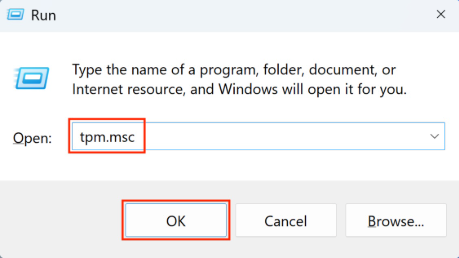
- When the “Trusted Platform Module (TPM) Management on Local Computer” screen is displayed, check the value for “Manufacturer Version” under “TPM Manufacturer Information”. If the value begins with “15.25.”, the update has been applied successfully.