VJS135* “USB Type-C® PD Firmware Ver.028” Update Program
Applicable models
VJS135※1
※1: Applies to units that do not support wireless WAN with a BIOS version of “RxxxxR1”.
Applicable OS
Windows 11 Home 64bit
Windows 11 Pro 64bit
Issue to be resolved
- Improved stability of the operation.
Download procedures
- Prepare a folder to store the downloaded file.
*In this explanation, we will use a folder named “Update” created on C Drive.
*Please use only single-byte alphanumeric characters for the folder’s name.
If you use double-byte characters, single-byte spaces, special characters, etc., the program cannot be executed correctly.
- Confirm the “Software License Agreement”.
- Click the [Agree and Download] button and download the update program to the folder created in Step 1.
- After downloading the program, apply the program by referring to the “How to apply the program and prior confirmation” below.
- For now, just download and do not run the file. After applying the update program, delete the “Update” folder created in Step 1.
How to apply the program and prior confirmation
■Prior confirmation
- It takes about 5 minutes to apply this program. Please do not perform any operations until it is completed.
- When applying this program, make sure that the remaining battery level is at least 50%, and disconnect all devices including AC adapters connected to the USB Type-C® port.
- The device will automatically shut down after the update is complete, so please close all applications in use before updating.
- After shutting down, wait about one minute, then plug in the AC adapter and press the power button.
- It may take some time to start up for the first time after completing the update.
- Please sign into Windows as “Computer Administrator” or “Administrator” user.
- The username must be registered with single-byte alphanumeric characters. If you are using double-byte or single-byte space as the username, please create a new account with single-byte alphanumeric username.
- Quit all running applications.
- Stop resident software such as anti-virus software.
- Make sure that your PC is not set to go into standby, sleep, or hibernation mode while updating.
- Do not turn off the power while updating.
- If the “User Account Control” or “Open File – Security Warning” dialog appears, please review the contents, and continue the operation as indicated.
- Check the applicable model. If you apply this program to other models by mistake, updating will fail or malfunction will occur.
■How to apply the program
- Close all applications running on Windows.
- Open the [PC (Computer)] – [Local Disk (C:)] – [Update] folder (the folder where you downloaded the file) and double-click the [SP000680.exe] file.
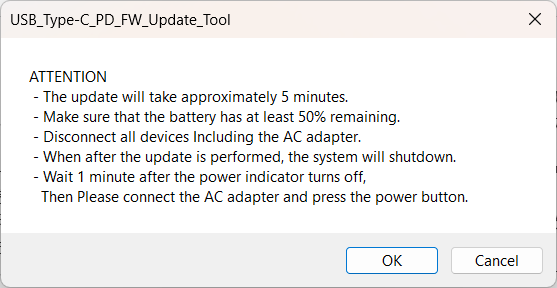
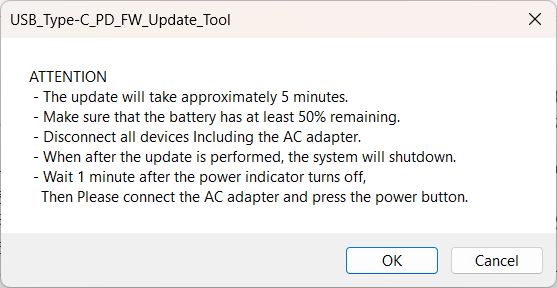
- The following dialog will appear, so make sure the battery level is at least 50%, disconnect all devices including the AC adapter connected to the Type-C® port, and then click [OK].
- When the User Account Control screen appears, click [Yes].
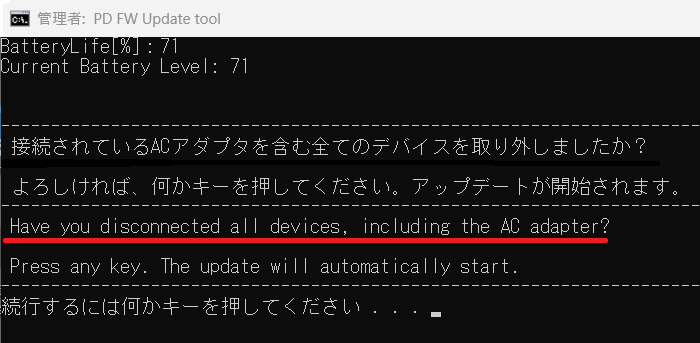
- The following screen (command prompt screen) will appear, and then the message “Have you disconnected all devices, including the AC adapter?” will appear again. Make sure all devices have been disconnected and press any key.
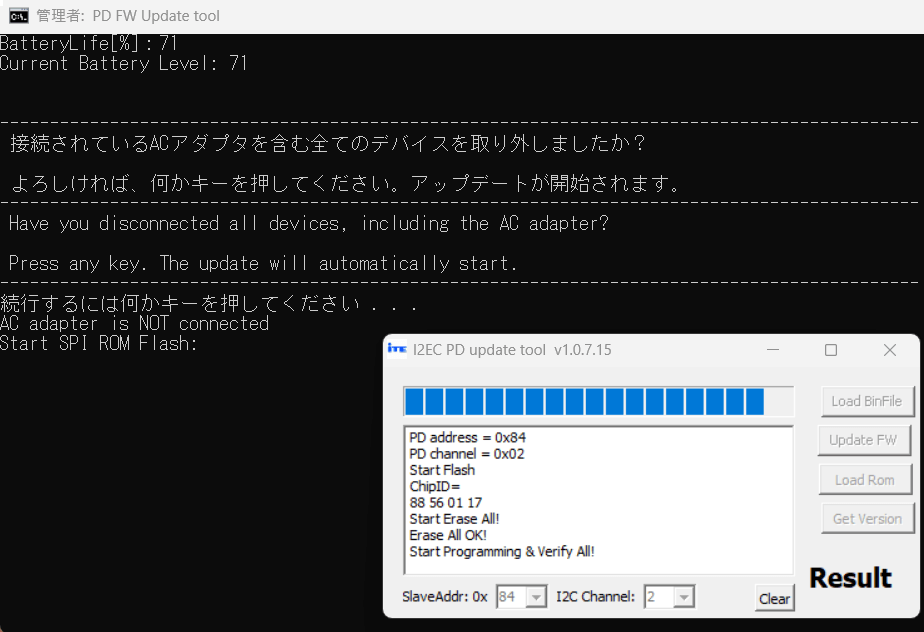
6. The update screen will appear, and the update will begin. Please wait without performing any operations until the “Success” screen appears.
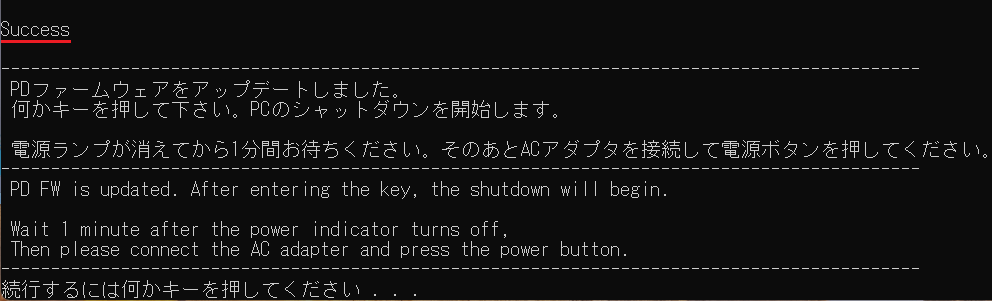
Cautions
- It takes about 5 minutes to apply this program.
- The fan may spin at high speed during update.
7. Press any key when the following screen appears. The PC will shut down automatically.
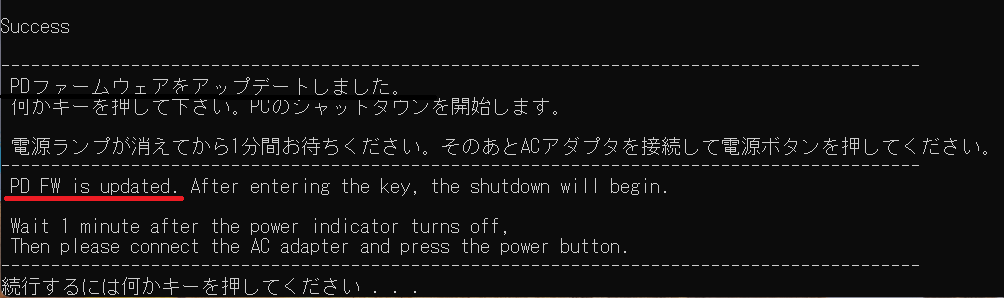
8. After the power indicator turns off, be sure to wait about 1 minute and then connect to the AC adapter and press the power button.
Cautions
- After updating, the battery connection is temporarily cut off, so the device will not start unless you connect to the AC adapter.
- If the AC adapter is connected without waiting about 1 minute after the power indicator turns off, the battery charge light may remain on even when the AC adapter is not connected.
In this case, remove the AC adapter and press the battery off button on the bottom of the device for 3 seconds while the power is off.
- It may take some time for the OS to start after the power is turned on.
- In the following cases, the update cannot be performed, and an error message will be displayed.
・When the remaining battery level is less than 50%.
・For non-compatible models.
This completes all procedures.
How to confirm that the program has been applied
- Open the [PC (Computer)] – [Local Disk (C:)] – [Update] folder (the folder where you downloaded the file) and double-click the [SP000680.exe] file.
- The following dialog will appear, so click [OK].
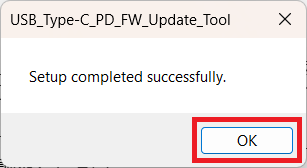
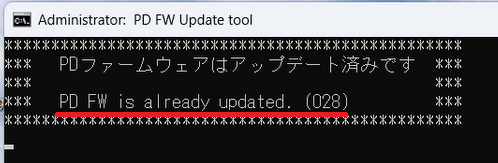
3. If the following screen appears, the update has been successful.
4. The following dialog will appear, so click [OK].